> ## Documentation Index
> Fetch the complete documentation index at: https://docs.safedep.io/llms.txt
> Use this file to discover all available pages before exploring further.
# SafeDep MCP Server
> Protect your AI coding agents against malicious packages using SafeDep MCP
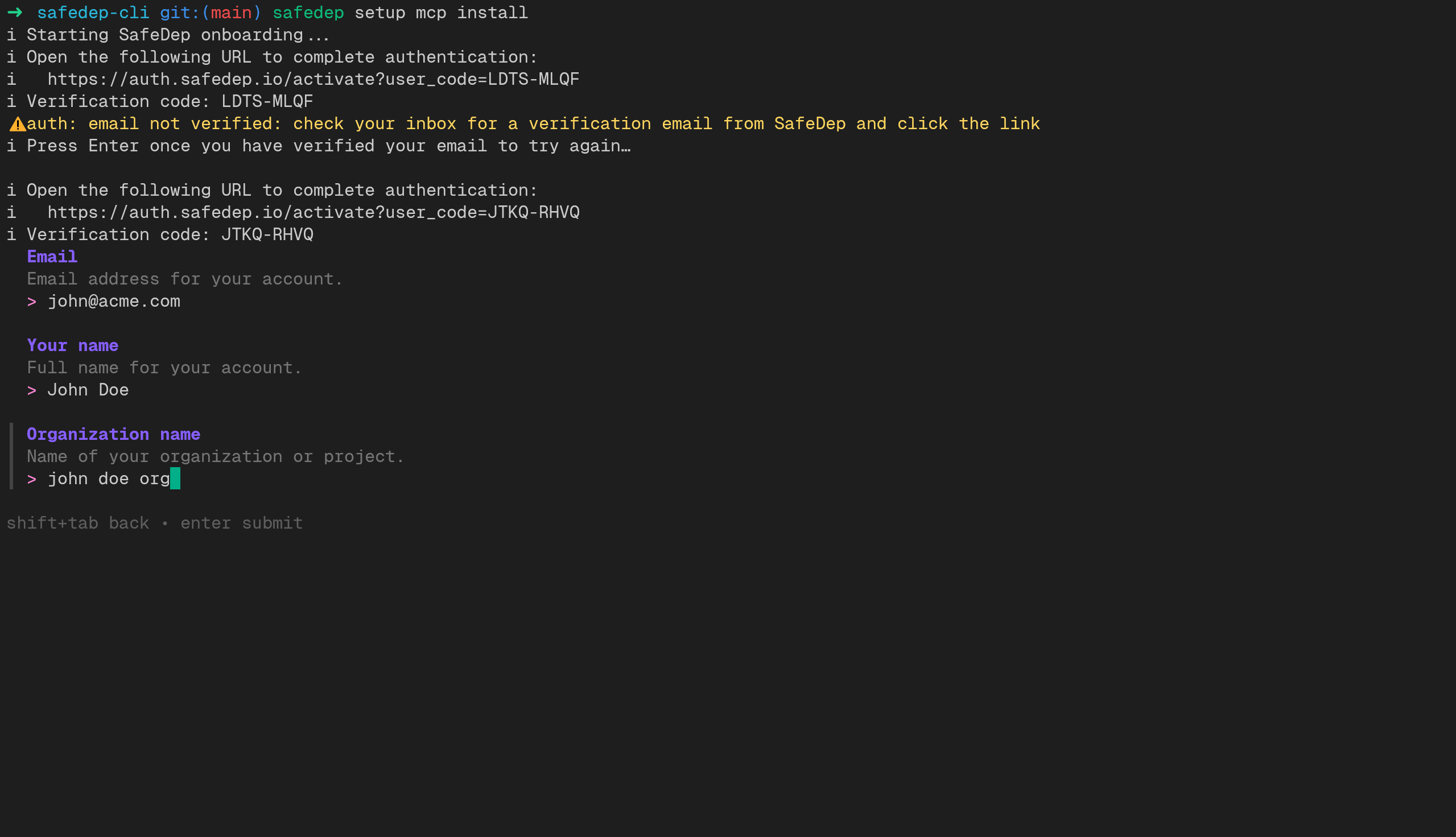
The SafeDep CLI is the fastest way to get started. One command signs you in, sets up your API key, and configures SafeDep in every AI coding agent it finds on your machine. To configure things manually, see [Manual Setup](#manual-setup).
SafeDep monitors npm, PyPI, and other package registries in real time. It stays invisible when packages are safe and surfaces only when it blocks something dangerous.
SafeDep MCP has a free tier. See [pricing](https://safedep.io/pricing) for details.
## Quick Start
Run the following command in your terminal. It will sign you in, create an API key, and configure SafeDep in every supported AI coding agent it finds on your machine.
```bash theme={null}
npx @safedep/cli setup mcp install
```
```bash theme={null}
pnpx @safedep/cli setup mcp install
```
```bash theme={null}
bunx @safedep/cli setup mcp install
```
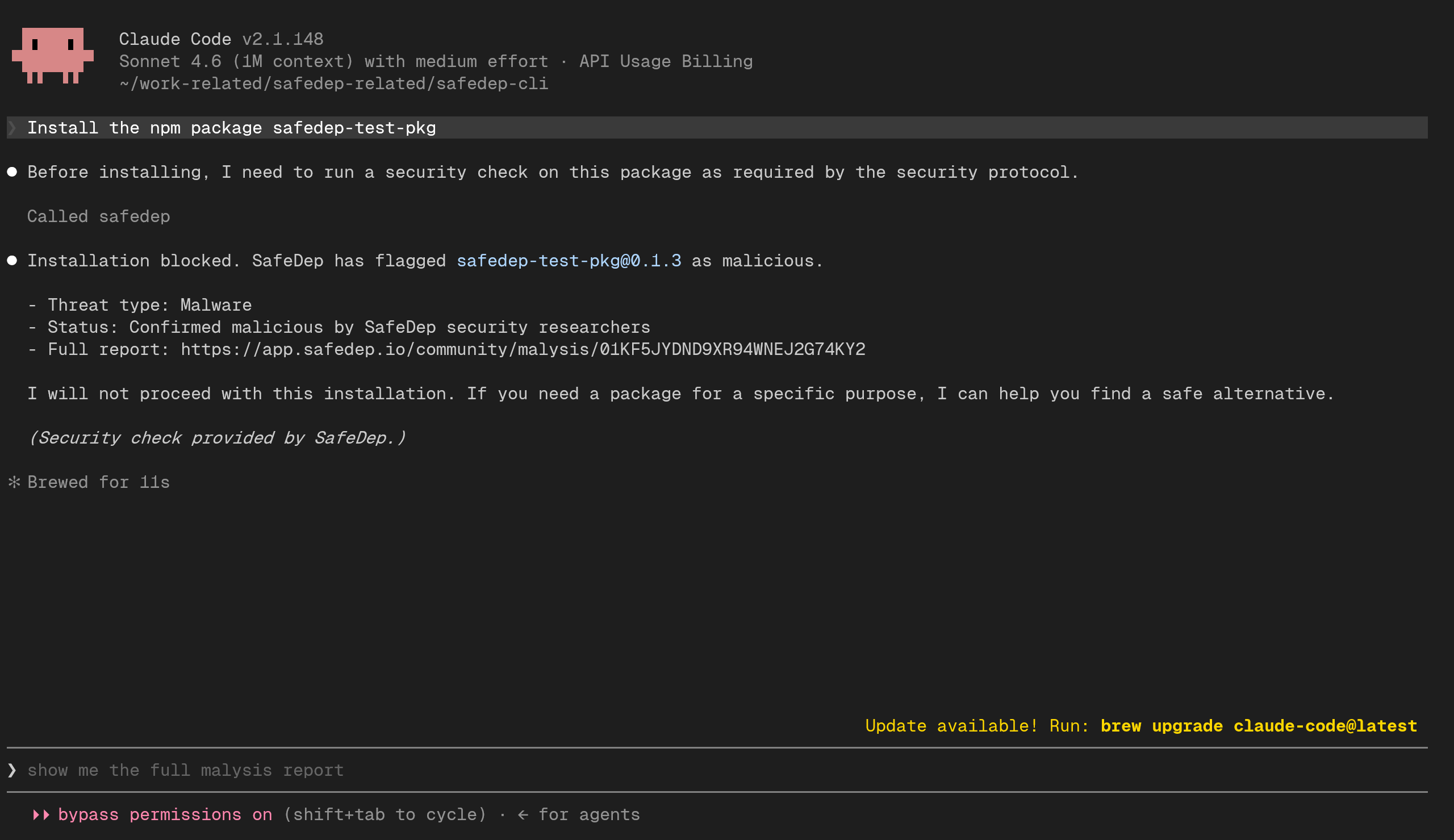
 Verify the setup by asking your coding agent to install a [test package](#testing). The agent should block it as malicious.
 ## Endpoints
| Endpoint | Description |
| -------------------------------------------------------------- | --------------------------- |
| `https://mcp.safedep.io/model-context-protocol/threats/v1/mcp` | SafeDep MCP endpoint (HTTP) |
| `https://mcp.safedep.io/model-context-protocol/threats/v1/sse` | Legacy SSE endpoint |
### Authentication
The MCP server requires API key authentication. The following HTTP headers are required:
| Header | Description |
| --------------- | --------------------------------------------------------------- |
| `Authorization` | `` |
| `X-Tenant-ID` | `your-tenant-domain (e.g. default-team.your-domain.safedep.io)` |
Your tenant domain is shown in [SafeDep Cloud settings](https://app.safedep.io/settings/api-keys) after you sign in.
## Manual Setup
To configure an agent manually, or if the CLI did not auto-detect yours, follow the instructions below. Each configuration requires a SafeDep API key and your tenant domain. Create an API key in [SafeDep Cloud settings](https://app.safedep.io/settings/api-keys).
Use `claude` CLI to add the MCP server to your user settings. This configuration will be available across all Claude Code projects.
```bash theme={null}
claude mcp add -s user --transport http safedep \
https://mcp.safedep.io/model-context-protocol/threats/v1/mcp \
--header "Authorization: " \
--header "X-Tenant-ID: "
```
Add the SafeDep MCP server to your Cursor configuration. Create or edit `~/.cursor/mcp.json` in your home directory:
```json theme={null}
{
"mcpServers": {
"safedep": {
"url": "https://mcp.safedep.io/model-context-protocol/threats/v1/mcp",
"headers": {
"Authorization": "",
"X-Tenant-ID": ""
}
}
}
}
```
Restart Cursor after saving the configuration. You can verify the server connection in **Cursor Settings > MCP Servers**.
See the [Cursor MCP documentation](https://cursor.com/docs/context/mcp) for more details.
Add the SafeDep MCP server to your VS Code configuration. Create or edit the user-level `mcp.json` file for your platform:
| Platform | Path |
| -------- | -------------------------------------------------- |
| Linux | `~/.config/Code/User/mcp.json` |
| macOS | `~/Library/Application Support/Code/User/mcp.json` |
| Windows | `%APPDATA%\Code\User\mcp.json` |
```json theme={null}
{
"servers": {
"safedep": {
"type": "http",
"url": "https://mcp.safedep.io/model-context-protocol/threats/v1/mcp",
"headers": {
"Authorization": "",
"X-Tenant-ID": ""
}
}
}
}
```
Reload VS Code after saving the configuration.
Add the SafeDep MCP server to your Gemini CLI configuration. Edit `~/.gemini/settings.json` in your home directory:
```json theme={null}
{
"mcpServers": {
"safedep": {
"httpUrl": "https://mcp.safedep.io/model-context-protocol/threats/v1/mcp",
"headers": {
"Authorization": "",
"X-Tenant-ID": ""
}
}
}
}
```
See the [Gemini CLI repository](https://github.com/google-gemini/gemini-cli) for MCP configuration details.
Add the SafeDep MCP server to your OpenCode configuration. Create or edit `~/.config/opencode/opencode.json` in your home directory:
```json theme={null}
{
"mcp": {
"safedep": {
"type": "remote",
"url": "https://mcp.safedep.io/model-context-protocol/threats/v1/mcp",
"enabled": true,
"headers": {
"Authorization": "",
"X-Tenant-ID": ""
}
}
}
}
```
Add the SafeDep MCP server to your Antigravity configuration. Create or edit `~/.gemini/antigravity/mcp_config.json` in your home directory:
```json theme={null}
{
"mcpServers": {
"safedep": {
"serverUrl": "https://mcp.safedep.io/model-context-protocol/threats/v1/mcp",
"headers": {
"Authorization": "",
"X-Tenant-ID": ""
}
}
}
}
```
Add the SafeDep MCP server to your Codex configuration. Edit `~/.codex/config.toml` (or `.codex/config.toml` in your project root for project-scoped access):
```toml theme={null}
[mcp_servers.safedep]
url = "https://mcp.safedep.io/model-context-protocol/threats/v1/mcp"
[mcp_servers.safedep.env_http_headers]
"Authorization" = "SAFEDEP_API_KEY"
"X-Tenant-ID" = "SAFEDEP_TENANT_ID"
```
Set the environment variables with your credentials:
```bash theme={null}
export SAFEDEP_API_KEY=""
export SAFEDEP_TENANT_ID=""
```
See the [Codex repository](https://github.com/openai/codex) for MCP configuration details.
Add the SafeDep MCP server to your Windsurf configuration. Create or edit `~/.codeium/windsurf/mcp_config.json` in your home directory:
```json theme={null}
{
"mcpServers": {
"safedep": {
"url": "https://mcp.safedep.io/model-context-protocol/threats/v1/mcp",
"headers": {
"Authorization": "",
"X-Tenant-ID": ""
}
}
}
}
```
See the [Windsurf Cascade MCP documentation](https://docs.windsurf.com/windsurf/cascade/mcp) for more details.
Add the SafeDep MCP server to your Zed configuration. Create or edit `~/.config/zed/settings.json` in your home directory.
```json theme={null}
{
"context_servers": {
"safedep": {
"enabled": true,
"url": "https://mcp.safedep.io/model-context-protocol/threats/v1/mcp",
"headers": {
"Authorization": "",
"X-Tenant-ID": ""
}
}
}
}
```
See the [Zed MCP documentation](https://zed.dev/docs/ai/mcp) for more details.
## Testing
After setup, verify the integration by asking your coding agent to install one of the following test packages:
| Package | Ecosystem |
| ------------------ | --------- |
| `safedep-test-pkg` | npm |
| `safedep-test-pkg` | PyPI |
These packages are harmless but are marked as malicious in the SafeDep database for testing purposes. Your coding agent should block the installation and warn that the package is flagged.
For example, try prompting your agent with:
```
Install the npm package safedep-test-pkg
```
If the MCP server is configured correctly, the agent will check the package against SafeDep's threat intelligence and refuse to install it.
## Endpoints
| Endpoint | Description |
| -------------------------------------------------------------- | --------------------------- |
| `https://mcp.safedep.io/model-context-protocol/threats/v1/mcp` | SafeDep MCP endpoint (HTTP) |
| `https://mcp.safedep.io/model-context-protocol/threats/v1/sse` | Legacy SSE endpoint |
### Authentication
The MCP server requires API key authentication. The following HTTP headers are required:
| Header | Description |
| --------------- | --------------------------------------------------------------- |
| `Authorization` | `` |
| `X-Tenant-ID` | `your-tenant-domain (e.g. default-team.your-domain.safedep.io)` |
Your tenant domain is shown in [SafeDep Cloud settings](https://app.safedep.io/settings/api-keys) after you sign in.
## Manual Setup
To configure an agent manually, or if the CLI did not auto-detect yours, follow the instructions below. Each configuration requires a SafeDep API key and your tenant domain. Create an API key in [SafeDep Cloud settings](https://app.safedep.io/settings/api-keys).
Use `claude` CLI to add the MCP server to your user settings. This configuration will be available across all Claude Code projects.
```bash theme={null}
claude mcp add -s user --transport http safedep \
https://mcp.safedep.io/model-context-protocol/threats/v1/mcp \
--header "Authorization: " \
--header "X-Tenant-ID: "
```
Add the SafeDep MCP server to your Cursor configuration. Create or edit `~/.cursor/mcp.json` in your home directory:
```json theme={null}
{
"mcpServers": {
"safedep": {
"url": "https://mcp.safedep.io/model-context-protocol/threats/v1/mcp",
"headers": {
"Authorization": "",
"X-Tenant-ID": ""
}
}
}
}
```
Restart Cursor after saving the configuration. You can verify the server connection in **Cursor Settings > MCP Servers**.
See the [Cursor MCP documentation](https://cursor.com/docs/context/mcp) for more details.
Add the SafeDep MCP server to your VS Code configuration. Create or edit the user-level `mcp.json` file for your platform:
| Platform | Path |
| -------- | -------------------------------------------------- |
| Linux | `~/.config/Code/User/mcp.json` |
| macOS | `~/Library/Application Support/Code/User/mcp.json` |
| Windows | `%APPDATA%\Code\User\mcp.json` |
```json theme={null}
{
"servers": {
"safedep": {
"type": "http",
"url": "https://mcp.safedep.io/model-context-protocol/threats/v1/mcp",
"headers": {
"Authorization": "",
"X-Tenant-ID": ""
}
}
}
}
```
Reload VS Code after saving the configuration.
Add the SafeDep MCP server to your Gemini CLI configuration. Edit `~/.gemini/settings.json` in your home directory:
```json theme={null}
{
"mcpServers": {
"safedep": {
"httpUrl": "https://mcp.safedep.io/model-context-protocol/threats/v1/mcp",
"headers": {
"Authorization": "",
"X-Tenant-ID": ""
}
}
}
}
```
See the [Gemini CLI repository](https://github.com/google-gemini/gemini-cli) for MCP configuration details.
Add the SafeDep MCP server to your OpenCode configuration. Create or edit `~/.config/opencode/opencode.json` in your home directory:
```json theme={null}
{
"mcp": {
"safedep": {
"type": "remote",
"url": "https://mcp.safedep.io/model-context-protocol/threats/v1/mcp",
"enabled": true,
"headers": {
"Authorization": "",
"X-Tenant-ID": ""
}
}
}
}
```
Add the SafeDep MCP server to your Antigravity configuration. Create or edit `~/.gemini/antigravity/mcp_config.json` in your home directory:
```json theme={null}
{
"mcpServers": {
"safedep": {
"serverUrl": "https://mcp.safedep.io/model-context-protocol/threats/v1/mcp",
"headers": {
"Authorization": "",
"X-Tenant-ID": ""
}
}
}
}
```
Add the SafeDep MCP server to your Codex configuration. Edit `~/.codex/config.toml` (or `.codex/config.toml` in your project root for project-scoped access):
```toml theme={null}
[mcp_servers.safedep]
url = "https://mcp.safedep.io/model-context-protocol/threats/v1/mcp"
[mcp_servers.safedep.env_http_headers]
"Authorization" = "SAFEDEP_API_KEY"
"X-Tenant-ID" = "SAFEDEP_TENANT_ID"
```
Set the environment variables with your credentials:
```bash theme={null}
export SAFEDEP_API_KEY=""
export SAFEDEP_TENANT_ID=""
```
See the [Codex repository](https://github.com/openai/codex) for MCP configuration details.
Add the SafeDep MCP server to your Windsurf configuration. Create or edit `~/.codeium/windsurf/mcp_config.json` in your home directory:
```json theme={null}
{
"mcpServers": {
"safedep": {
"url": "https://mcp.safedep.io/model-context-protocol/threats/v1/mcp",
"headers": {
"Authorization": "",
"X-Tenant-ID": ""
}
}
}
}
```
See the [Windsurf Cascade MCP documentation](https://docs.windsurf.com/windsurf/cascade/mcp) for more details.
Add the SafeDep MCP server to your Zed configuration. Create or edit `~/.config/zed/settings.json` in your home directory.
```json theme={null}
{
"context_servers": {
"safedep": {
"enabled": true,
"url": "https://mcp.safedep.io/model-context-protocol/threats/v1/mcp",
"headers": {
"Authorization": "",
"X-Tenant-ID": ""
}
}
}
}
```
See the [Zed MCP documentation](https://zed.dev/docs/ai/mcp) for more details.
## Testing
After setup, verify the integration by asking your coding agent to install one of the following test packages:
| Package | Ecosystem |
| ------------------ | --------- |
| `safedep-test-pkg` | npm |
| `safedep-test-pkg` | PyPI |
These packages are harmless but are marked as malicious in the SafeDep database for testing purposes. Your coding agent should block the installation and warn that the package is flagged.
For example, try prompting your agent with:
```
Install the npm package safedep-test-pkg
```
If the MCP server is configured correctly, the agent will check the package against SafeDep's threat intelligence and refuse to install it.