

Malicious Package Exclusions are available in SafeDep Cloud Pro and above.
See pricing.Only tenant owners can create, edit, or delete exclusions. If you can view package analysis results but cannot manage an exclusion, contact your tenant owner.
Where Exclusions Are Respected
Exclusions act as a tenant-level source of truth across SafeDep tools and integrations connected to SafeDep Cloud. This currently includes:- SafeDep Cloud package analysis views in
app.safedep.io - GitHub App
vetin cloud modevet-actionin cloud mode
When To Use An Exclusion
Use an exclusion when:- a package repeatedly appears as suspicious or malicious and your team has already reviewed it
- you want to reduce noise without disabling malicious package protection
- you want to trust a package temporarily by setting an expiry date
What An Exclusion Applies To
Each exclusion is scoped to a package ecosystem, name, and version. You can also add a reason and an optional expiry date for temporary exceptions. Malicious Package Exclusions apply only to malicious package analysis. They do not change vulnerability findings or other SafeDep checks.Create An Exclusion From Settings
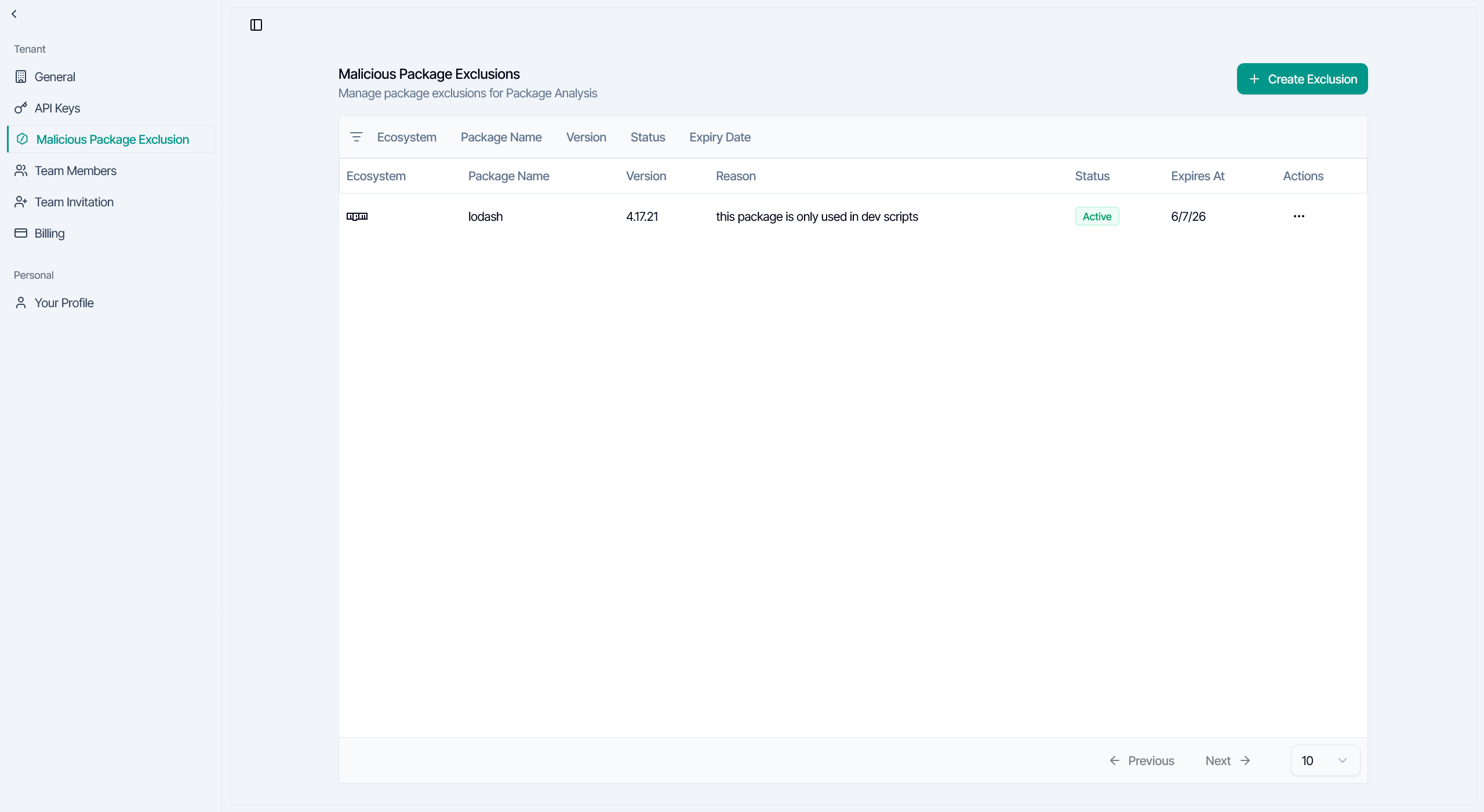
The main place to manage exclusions is the SafeDep Cloud settings page:1
Navigate to Settings
2
Create Exclusion
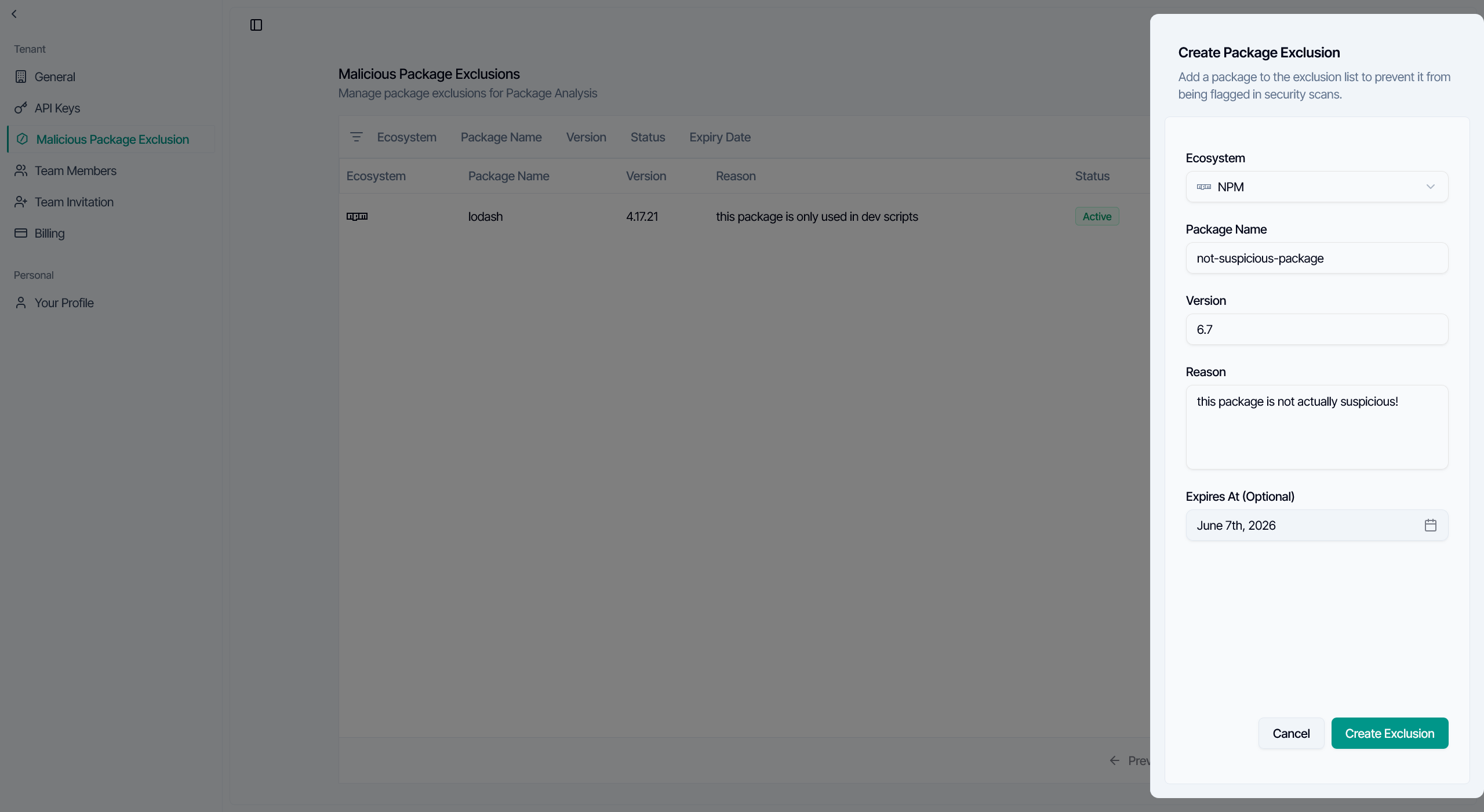
Click Create Exclusion
3
Fill Details
Fill in the package details
4
Save
Save the exclusion
Fields
When creating an exclusion, SafeDep Cloud asks for:- Ecosystem: The package ecosystem, such as npm or PyPI
- Package Name: The package to exclude
- Version: The specific version to exclude
- Reason: Why your team is excluding this package
- Expires At: Optional expiry date for temporary exceptions
0 in the Version field to exclude all versions of a package.
Create Or Manage An Exclusion From Package Analysis
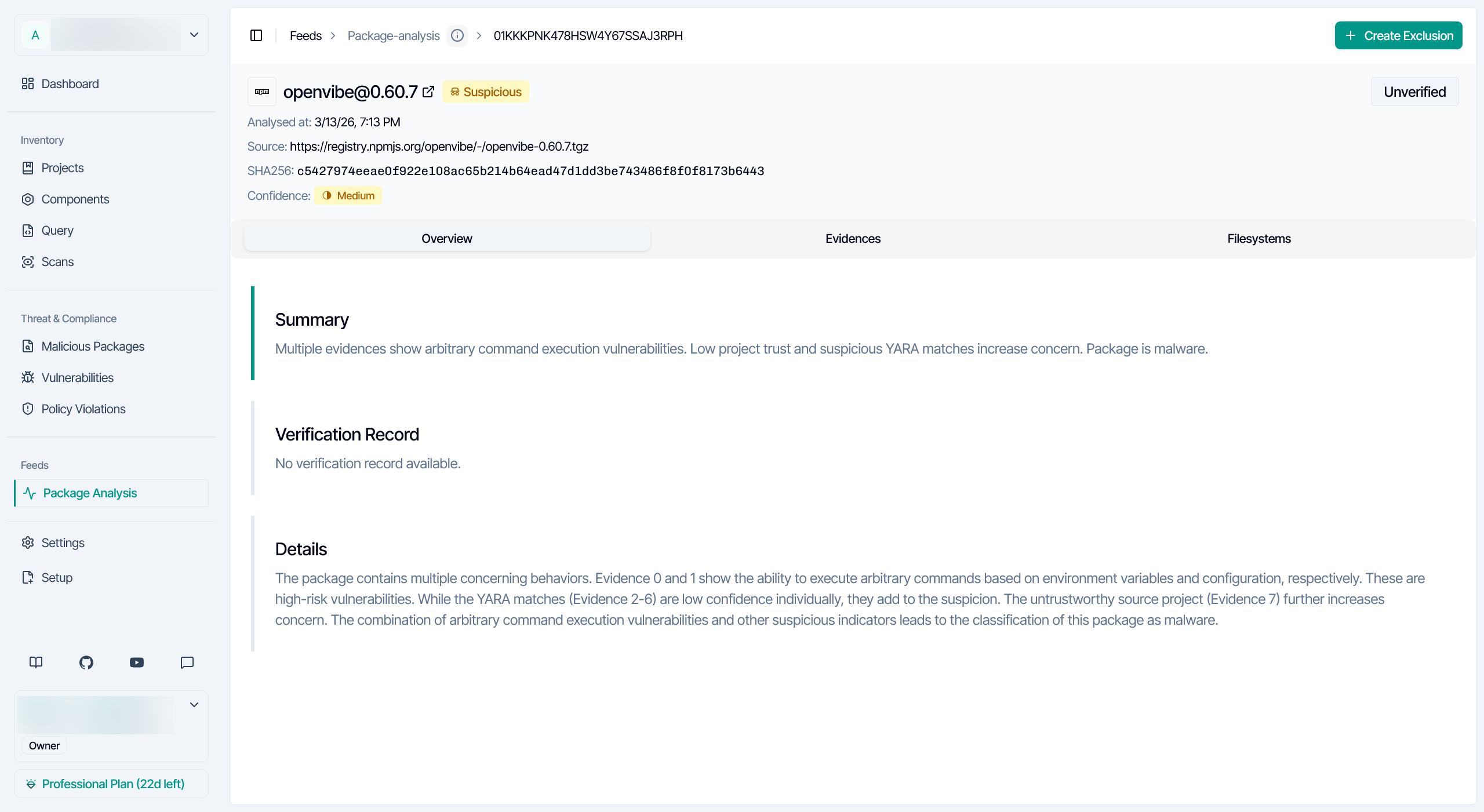
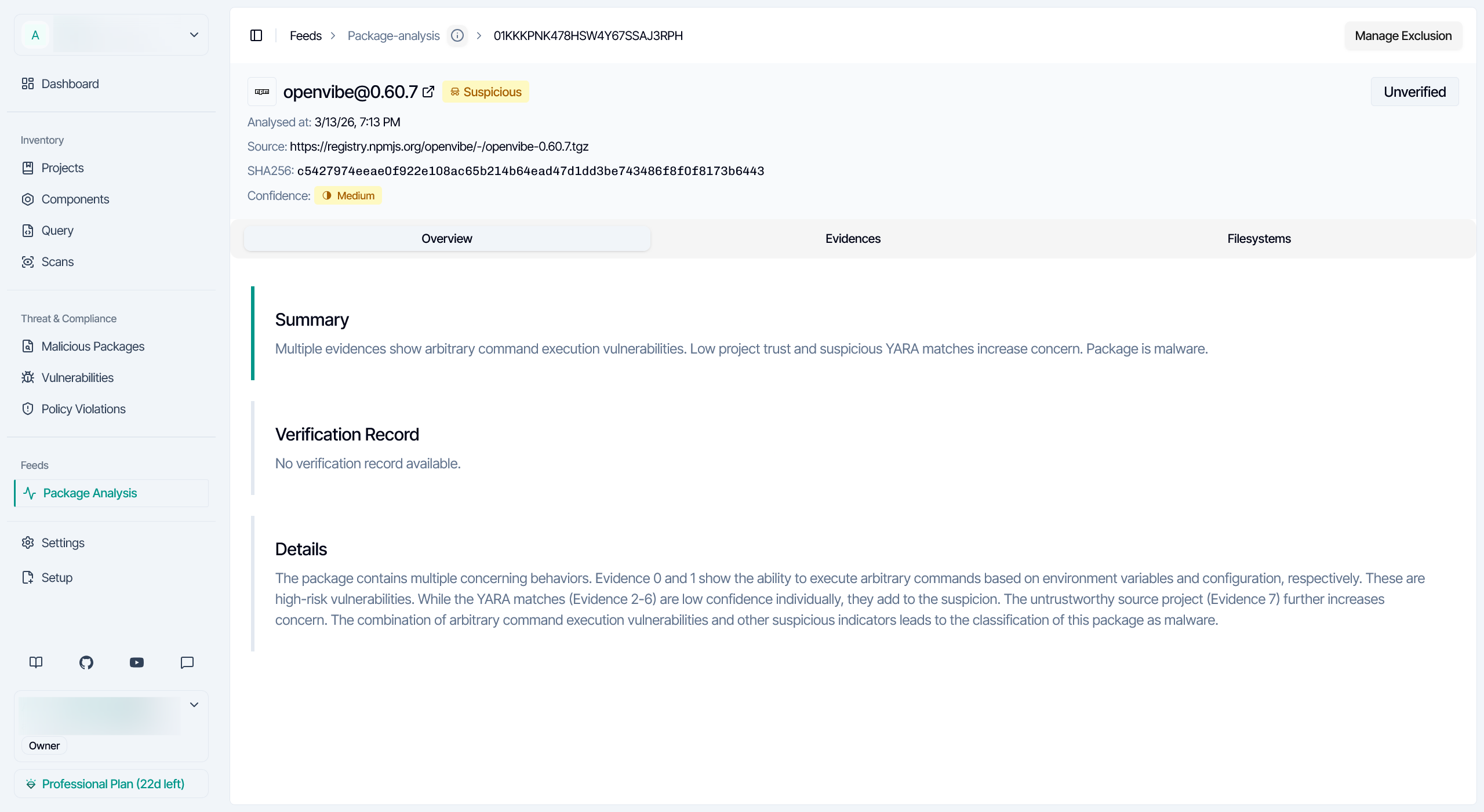
You can also start from a package analysis result:1
Open Package Result
Open a malicious package result in SafeDep Cloud
2
Create or Manage
Use the header action to create or manage an exclusion
- Create Exclusion if no exclusion exists yet
- Manage Exclusion if an exclusion already exists for that package and version
Manage Existing Exclusions
The exclusions table helps you review and maintain the exclusions already configured in your tenant. Each row shows the ecosystem, package name, version, reason, current status, expiry date, and available actions for that exclusion. You can filter exclusions by:- ecosystem
- package name
- version
- expiry status
- expiry date
- edit an exclusion
- delete an exclusion
- review the reason and expiry date attached to each exclusion
- quickly see whether an exclusion is active or close to expiring from the status badge
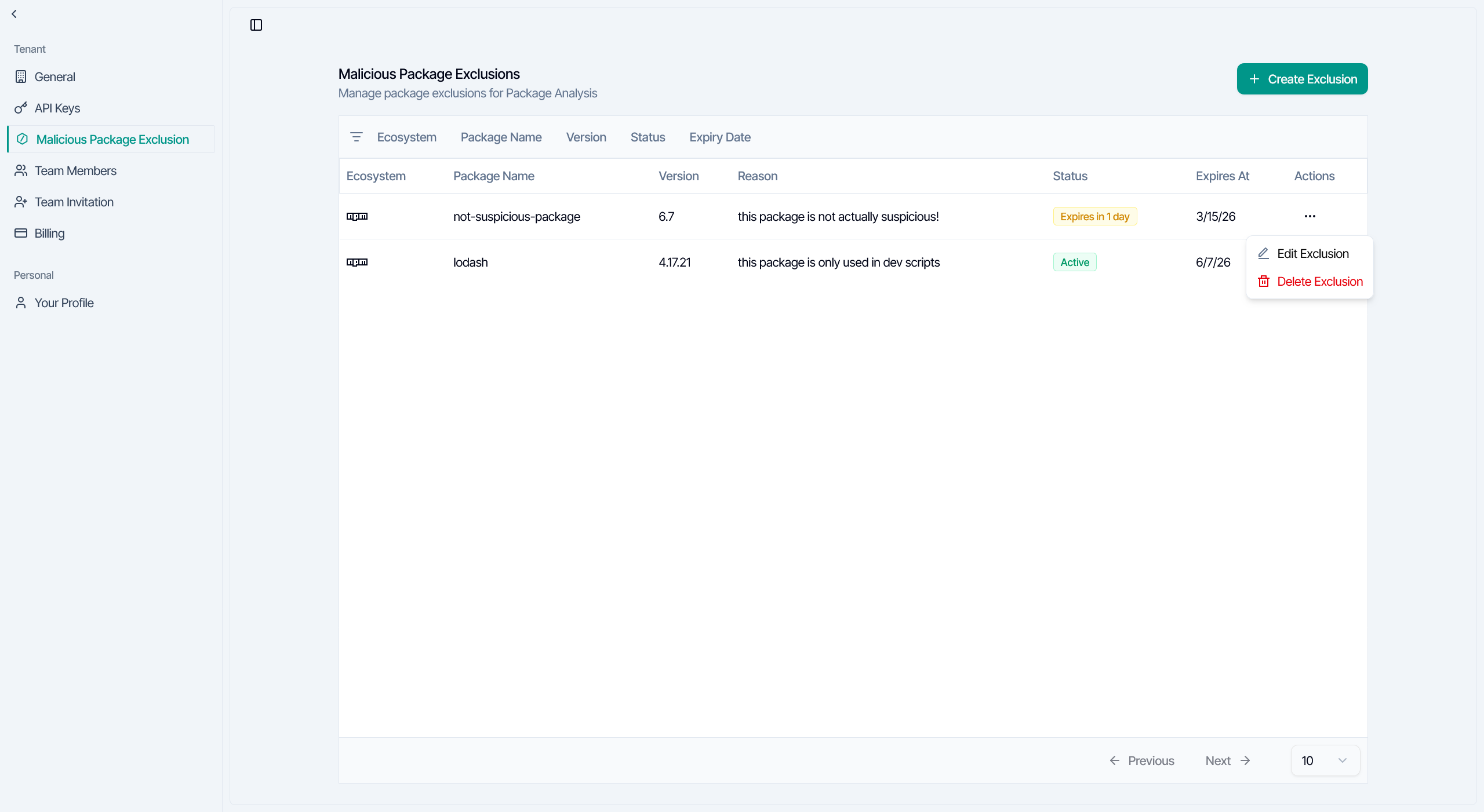
Edit An Exclusion
Use Edit Exclusion when you need to change:- the version
- the reason
- the expiry date
- the package identity
Delete An Exclusion
Delete an exclusion when you want malicious package analysis to apply normally again. After you delete an exclusion, later scans or package analysis results may surface that package again if it is still detected as suspicious or malicious.How Exclusions Work
SafeDep Cloud applies exclusions using the package identity you provide.Exact Version Vs All Versions
Version is matched exactly. Enter4.17.21 to exclude only that version, or 0 to exclude all versions. (0 is a special value meaning “all versions,” not the literal version 0.)
If both an exact-version exclusion and an all-version exclusion could match, the exact version takes precedence.
Expiry
An exclusion with an expiry date stops applying automatically after the expiry time passes. This is useful for temporary investigation windows, migrations, and short-lived exceptions.Verified Malicious Packages
SafeDep Cloud does not allow exclusions for packages it has already verified as malicious. If you try to create or update such an exclusion, SafeDep Cloud returns an error instead of saving it.What To Expect After Adding An Exclusion
After an exclusion is added:- future malicious package analysis for that package stops surfacing the excluded result across SafeDep tools and integrations that respect tenant exclusions
- the exclusion remains listed on the settings page so authorized users can review, update, or delete it later
- you may need to refresh the page or rerun the scan to confirm the updated behavior
Troubleshooting
I can see the page, but I cannot create an exclusion
Exclusion management is currently limited to tenant owners. If the button is disabled, ask your tenant owner to create or manage the exclusion for you.I see a paywall instead of the exclusions table
Malicious Package Exclusions are available in SafeDep Cloud Pro and above. Upgrade your plan or contact your SafeDep representative if you need access.Why did my exclusion stop working?
The most common reasons are:- the exclusion expired
- the package ecosystem, name, or version does not match the current finding
- you may need to refresh the page or rerun the relevant scan to confirm the latest result state
When should I use version 0?
Use version 0 when you want to exclude all versions of a package instead of just one specific version.
Next Steps
GitHub App
See how SafeDep respects exclusions in GitHub pull request checks
Malware Analysis
Learn how SafeDep Cloud analyzes packages for malicious behavior
Authentication
Configure access to your SafeDep Cloud tenant
Cloud FAQ
Find answers to common SafeDep Cloud questions